Autor: Carla Doria

  • Selecting a Theme in WordPress

    Selecting a Theme in WordPress

    “Can you give me some advice on selecting a theme?”

    That used to be one of the most common questions I received when I worked as a customer support agent for WordPress users.

    My answer changed over the years. Initially, themes were rigid. The theme design and layout were pretty much what you got and there was little space for customization.

    Classic themes

    Classic themes often had:

    • A fixed header and footer – If the header displayed a logo on the center and the navigation menu on the right side, modifying their locations required code knowledge. Sometimes code was not enough.
    • Fixed content width on pages and posts – If the theme had a full-width design, post and page content could stretch across the screen. However, if the theme had been designed with two-thirds of the screen for content and the remaining one-third for a widget bar, it would be hard to change that.
    • Widget sidebars or banners at the top of the homepage – The presence of these elements would depend on the theme you selected. Adding these elements or modifying them would be challenging.
    • Design-specific features – Having specific design features such as a carousel on the homepage area, a fixed navigation menu, etc. would depend on the theme’s overall layout and design.
    • Limited font and color options – Themes would come with specific fonts and colors and options to change them were limited.

    While people could still modify some design aspects such as the font size of the menu, hide the footer, or change the overlay color of the banner with CSS code, major structural changes were complex and sometimes impossible. For example, if you were looking to add a logo to a theme that hadn’t been designed with a logo in mind, not even code might have been enough.

    My advice was to pick up the theme based on the overall structure and design in mind.

    Theme’s demo content

    Back in those days, I would suggest customers to ignore the theme’s demo content. Themes demos often featured random content such as a beauty shop, a gym, or a real estate website. People sometimes thought that if they were building a website for a gym, then it made sense to choose a theme that displayed gym-related content.

    I had to explain that the demo content actually didn’t matter. The most important aspect was to select a design and layout that matched their needs. Did the theme have the kind of header area they were looking for? If they wanted a website with a fixed menu, a logo at the center, and a banner at the top, then they had to choose a theme that included this design. It didn’t matter if the theme’s demo showed content about a bookstore and the intended website was a gym. People could always change the content, change the images, and change the text. The important aspect was the overall design, header and footer layout, content width, widget areas, etc.

    Sometimes, this explanation was difficult to follow. It wasn’t intuitive. If I were new to WordPress and I needed a website for a coffee shop, I would be too inclined to pick a theme that has some content about coffee shops.

    The real challenge was explaining that WordPress themes were fundamentally inflexible and major design changes often required heavy coding or were not possible at all.

    The Flexibility of Modern WordPress themes

    Now things have changed considerably with the introduction of Gutenberg/Block Editor and Full Site Editing.

    Still, there might be some WordPress users how haven’t used the platform in years and might not realize how much has changed. So here’s my updated advice:

    Don’t spend too much time picking a theme – If you’re choosing a theme with Full Site Editing options (which is now most of the themes), you will be able to edit and change anything you want. Full site editing has taken Gutenberg/Block editor to the next level by leveraging block customization to all those theme parts that you couldn’t touch before unless you knew some code.

    With Full Site Editing, every part of your site – your header area, footer, content area – everything is now a block.

    On new themes, your website’s design is organized into templates. There is a template for your Home page, a template for pages, a template for posts, etc.

    If you want your header area to look different on whatever theme you have chosen, then you only have to go to the respective template, access the block that corresponds, and modify it.

    To help you follow this better. Let’s assume you’ve picked a theme and you want to add an image below the tagline in the header area. Let’s see the steps.

    Go to Appearance -> Editor

    Go to Templates.

    Click the template you want to edit. In this case, I want to edit the Home Page Template.

    Once inside the homepage template, click the header area to access the blocks inside the header area. As with the block editor in a page or post, you will see the list of blocks on the left sidebar.

    If you want to add an image below the tagline, click the three dots next to this block and select Add After.

    Add an image block and then insert an image.

    This could be the expected result:

    Adding an image after a tagline doesn’t make any sense, but this is only an example of how flexible is now your header area.

    Conclusion

    Although picking a theme is still important, it’s not as important as before. The theme won’t determine your look & feel anymore. If the theme is new and has options for Full Site Editing, then you will be able to customize it as much as possible. Restrictions based on the theme’s design are now in the past.
  • The Ultimate Guide to Create Book trailers in 2025

    The Ultimate Guide to Create Book trailers in 2025

    Book trailers are video teasers that entice potential book readers to buy your book.

    How do you promote books?

    Traditionally and for many years, this is how books have been promoted:

    • Reviews on book review blogs.
    • Reviews on sale platforms: feedback on Amazon, Goodreads, and similar platforms.
    • Banner Ads on blogs, websites, and other book-related platforms.
    • In-person book tours at libraries, bookstores, and other events.

    While these methods remain effective, the landscape of book promotion has expanded and one of the most powerful avenues is now social media.

    Using social media to promote your book

    In an era of social media, and with the increase of self-published authors who lack the support of a literary agency, writers must now look at ways to promote their books on social networks. Unlike traditional blog reviews that rely on written content, social media thrives on engaging visual material.

    So, what types of visual material can you prepare to promote your book?

    • Book covers
    • Book images (if available)
    • Visual reviews: highlighted reviews converted into eye-catching images or graphics.
    • Videos
    Image of a typewriter that has typed "review"

    Using book trailers to promote books

    But what kind of videos? creating a video based on a book, especially a fiction book, can be challenging. While author interview videos are an option, they’re not always available and feasible for most authors.

    In the last few years, book trailers have grown in popularity in the literary world, either for promoting fiction or non-fiction books. Many platforms and freelancers offer these services, from PowerPoint-like presentations to videos generated with generic stock media.

    But what about using AI? What is the advantage of using AI versus ordering a service that will use your book cover and mix it with generic stock media?

    With AI, you can generate images that are customized to your own story and characters, bringing them to life in a way generic media cannot. There are many freelancers who offer this service, like the one I offer here, but there are also many authors who are low on budget and prefer to learn it by themselves. AI provides a cost-effective and creative way to build a book trailer.

    In this blog post, I’ve compiled the most important information that you need to create your own book trailer with AI. Let’s get started!

    image of a person filming a video

    Guide to Create a Book Trailer

    Write a script for your Book Trailer

    Yes, all videos need a script. As an author yourself, you already have an advantage with the writing part, but what exactly do you want to include in your video script?

    Video script ideas for your Book Trailer

    • Your script can be based on or be exactly the same as your book’s blurb, i.e. the description that usually goes in your book’s back cover and that is posted when you list it on platforms like Amazon. The book blurb is short and should be intriguing.
    • You can also use a teaser or captivating scene from your book – a scene that you know is going to call the attention of your potential readers. Is there any intriguing dialogue that you think will entice viewers to know more about your book’s content? If so, consider adding it to your video script.
    • If your book is non-fiction, your script should revolve around the book’s pitch. Make sure this pitch reflects the unique value your book offers and the key takeaways readers will gain.

    Take into account that book trailer videos are short. You could create a 5-minute video, but social media audiences have short attention spans. I would suggest creating something in between 90 to 120 seconds at the most.

    Using AI for the video script on your Book Trailer

    If you’re stuck with your video script ideas, why not turn to tools like ChatGPT to help? Even if you dislike the idea of AI writing the video script for you, keep in mind that this tool is an excellent resource for improving and polishing your draft.

    You can also use ChatGPT to change your written script into a video script format. The tool will break your script into scenes, suggest imagery for those scenes, as well as propose potential voiceover lines. Even if you don’t want to use the voiceover generated by AI, you can still get good recommendations for the imagery and the structuring of the scenes.

    Remember, the goal of your video script is to order your ideas and make sure that you squeeze the most impactful scenes in a short video.

    screenshot of a person using chatGPT on a laptop

    Generate the images for your Book Trailer

    There are many AI tools to help you generate both images and their animation. Even though there are tools that will allow you to generate both in a single process, I suggest you do them separately to guarantee the following:

    • Consistency in style and character design is maintained across all visuals.
    • Animation is controlled as best as possible.

    For generating images, there are plenty of AI tools to choose from, including Dall-e, Midjourney, Stable Diffusion, Leonardo AI, Davinci AI, Canva, Adobe Firefly, and others. I personally suggest Midjourney because it specializes in images and has good customization options.

    If you’re struggling to generate images with the same character in different scenes, check my Midjourney consistent characters tutorial to learn more about it.

    Generate the animation for your Book Trailer

    There are many tools that you can use to animate your images, such as Runway, Pika, and others. I personally recommend Pika. Over time, this tool has improved and added features that are now better or even surpass Runway. I also feel that with Pika you have more control over the generated animation. Besides their lip-sync feature is top-notch, making it an excellent choice if your book trailer includes characters speaking.

    If you don’t know what type of animation to apply to an image, I would suggest the following:

    AI Animation tools still have a long road to go. They still face challenges, particularly when it comes to creating specific animation without getting dysmorphic or distorted images. Instead of aiming for complex animations and exact movements, ask yourself: Is there a better way to portray this scene with a simpler visual?

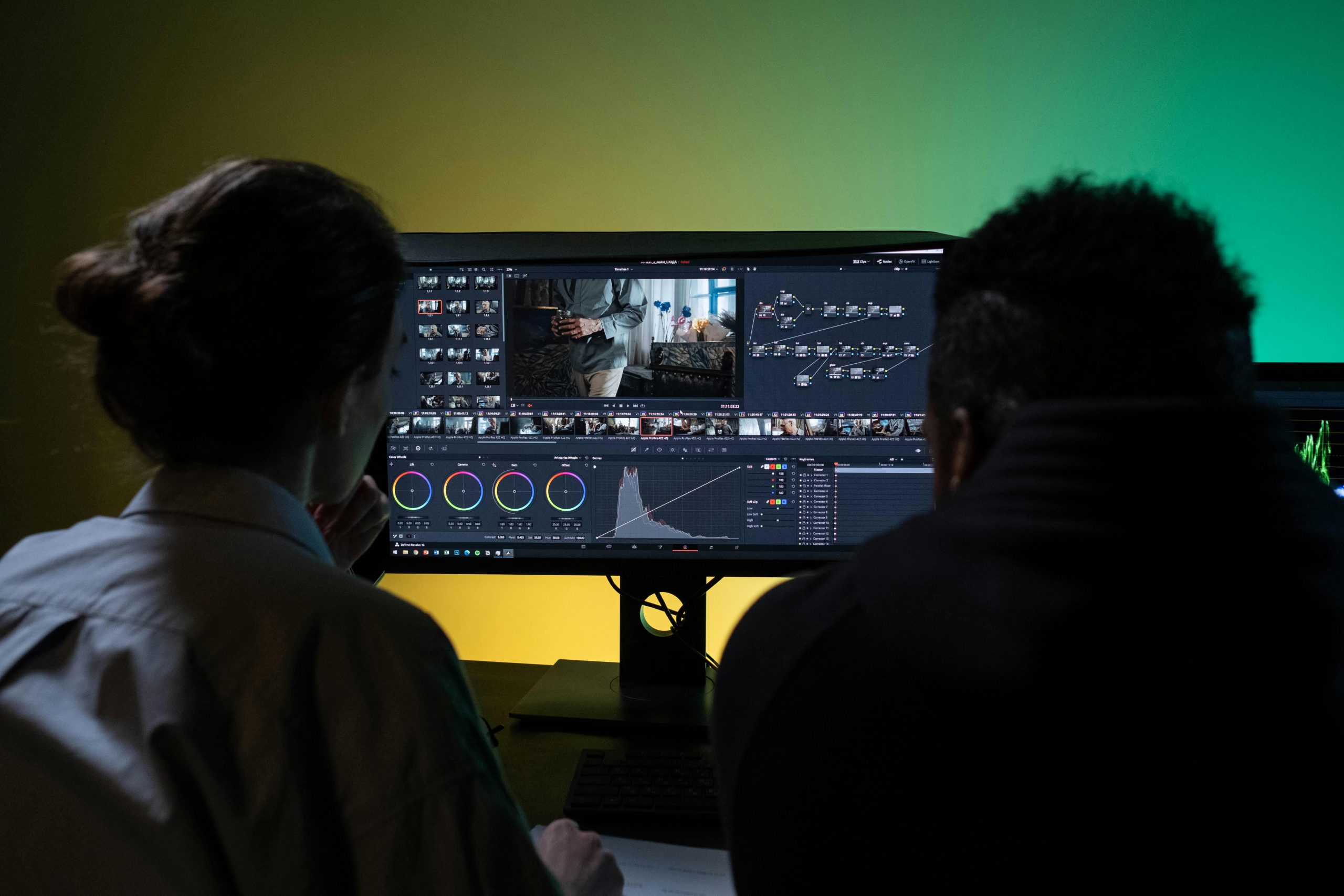
    image of a person editing a video on a computer screen

    Generate the voiceover for your Book Trailer

    Depending on your type of book trailer, you might need not only a narration voiceover but also character dialogues. Fortunately, there are many AI tools that can help you generate good voiceovers without robotic-sounding tones – unless, of course, your book character is a robot!

    I would suggest Elevenlabs for this purpose. Their voice directory is extensive and they include good options to customize voice inflections.

    When selecting a narrator’s voice, make sure to pick a powerful voice that complements your book’s tone and theme. If you’re picking a male voice, I recommend opting for a deeper-sounding voice. Sometimes high-pitched voices are not the best, but the choice will ultimately depend on your book’s content and theme.

    Select the background music for your Book Trailer

    Adding background music is a great way to set the right mood for your book trailer. Depending on your script and the genre of your book, you might already have an idea of what soundtrack you would like to have. Here are a few important points to consider:

    • Ensure you have the proper legal rights to use the music.
    • Platforms like Openverse or Freesound offer excellent resources for royalty-free or Creative Commons-licensed music.
    • When researching music, make sure to check the correct type of license. This will help you decide if you need to add any kind of attribution in your video credits, if you can edit it commercially without breaking copyright laws, or if you can use it freely without restrictions.
    • Your video doesn’t need to rely only on music; you can mix it with sound effects or even ambient noise. Collect first all the sounds you think you will need, then in the next step, you will be able to merge all these files.

    Edit the Book Trailer video

    This is where you bring together all the content generated: animated images, voiceover, dialogues, music, and sound effects. There are many video editors out there, you can use Camtasia, iMovie, etc. But if you have access to a more professional tool like Adobe Premiere Pro, then I definitely recommend it.

    Image a a software editing audio and video

    Including a Call to Action in your Book Trailer

    This is the most important part of the book trailer, yet many people oversee it. Make sure to place information about your book either during or at the end of the book trailer so viewers know where to find your book.

    What information should you place?

    Well, it will depend on the stage of your book’s journey:

    • If you’re about to launch it, then you can invite people to follow your website or a specific social media account to stay updated on the book’s release. You won’t be able to add a clickable link to the video, but you can display a shortened link and include the link in the description of the social media platform where you are posting the book trailer.
    • If the book is available for pre-order on places like Amazon, then make sure to include information about it. Something like “Pre-order at Amazon” can be enough.
    • If your book has already been launched, then include the platforms where people can find it. You can display logos from Amazon, Barnes&Nobles and others, directly. You don’t need to include links, but if you want to add them, do it in the description of the social media post. If the book is already available, people should be able to search for your book’s title or author name directly on platforms like Amazon.

    Other tips

    • When you decide to do the book trailer, check what social media you will be using as the size of the images and video will depend on the social network. For example, for Instagram stories and TikTok-style videos, you will need a video with an aspect ratio of 9:16. If you need only this size, then start generating images with this ratio.
    • If you will be promoting on several social media and you will need different formats, you can achieve this inside Adobe Premiere Pro with its auto-reframe sequence feature.
    image of two people editing a video on a computer screen

    Conclusion

    Depending on the complexity of the video, there could be more steps. However, I believe this blog post should summarize all the steps needed to build a book trailer video.

    I must clarify that most of the tools mentioned here are not free, especially the ones for animation, so you’ll probably need some budget to achieve it on your own.

    If you prefer to avoid buying plans on these tools and having someone with experience build this for you, please check my service for book trailers on Fiverr.

  • Embedding WordPress Playground in your website

    Embedding WordPress Playground in your website

    WordPress Playground has been around for a while, and chances are you’ve already heard of it. Most people see it as a tool where one can experiment with plugins, themes, and other WordPress features- and that is correct. But it can also be a good feature to embed in your website or blog posts. Here are some potential scenarios where you might want to embed WordPress Playground:

    1. If you’re writing articles or tutorials related to WordPress and you want to display the latest features of a plugin or of WordPress in general, why not embed a live instance of WordPress? This allows your readers to interact with and explore the feature hands-on.
    2. If you’re teaching WordPress and have a blog or web displaying training, instead of guiding people to install WordPress themselves, why not embed WordPress Playground in your content? This simplifies the learning process and makes your material more engaging.
    3. If you’re using WordPress as an intranet tool for your Business or organization, you probably need to provide onboarding training. Why not consider tutorials that include WordPress playground to provide hands-on training and assess employees’ knowledge?

    These are only three scenarios of how embedding WordPress Playground can be beneficial, but there are more out there.

    Embedding is simple and I’m here to explain it as easily as possible:

    Embedding WordPress Playground with Code

    Using iframes is one of the easiest ways to do it. Check this code:

    <iframe width="800" height="650" src="https://playground.wordpress.net/" allowfullscreen></iframe>

    Let’s try it out:
    1. In the block editor, search for the HTML block.
    2. Type the iframe code above

    This is the result:

    3. To view the result, you have to click Preview in the HTML block. The first time, it will take some time to load as it installs the WordPress instance.

    Notice that this is a very simple code. At the beginning of the iframe, there are some width and height specifications, you can of course change these numbers.

    Now if you try the following code, it will install a slightly different WordPress instance, one that has the theme “Pendant” installed.

    This is the code:

    <iframe width="800" height="650" src="https://playground.wordpress.net/?theme=pendant&mode=seamless" allowfullscreen></iframe>

    This is the result:

    You can also specify plugins. That way, the person who interacts with your website or blog will have access to an instance of WordPress already set up with the plugins and themes you’ve chosen.

    In the following example, the WordPress Playground instance will download the Yoast plugin and theme Kubio. Note that “wordpress-seo” is the WordPress.org directory name/slug used for Yoast. If you don’t know the right name for a plugin or theme, search for them in the wordpress.org plugin directory or theme directory.

    This is the code:

    <iframe width="800" height="650" src="https://playground.wordpress.net/?plugin=wordpress-seo&theme=kubio&mode=seamless" allowfullscreen></iframe>
    

    This is the result:

    To add several plugins, you can separate them with ampersand &. Notice that the more complex your WordPress playground is, it will take longer to load.

    Embedding WordPress Playground with a plugin

    There is a new plugin called WordPress Playground Block that will let you embed WordPress Playground in your website.

    Once you install this free plugin, you only need to search for this block in the block editor, as seen here:

    Screenshot of the WordPress block editor showing the block WordPress playground

    You can see the result here:

    Screenshot of the WordPress block editor showing the options for the WordPress Playground block.

    You will find many useful options inside this plugin such as the ability to see the code editor, define a landing page to redirect to, create new pages and posts, and some debug options.

    Conclusion

    The key advantage of using code is the ability to bring up a WordPress instance with specific plugins and themes. However, not all people may feel comfortable working with iframe codes, and in such cases, using a plugin can be a more user-friendly alternative.

    Both methods are useful for many scenarios. Embedding WordPress Playground instances will help you, not only illustrate what you have on your website, tutorial, or training material but also make the experience more interactive and engaging for the reader.

  • Most useful AI features in Photoshop

    Most useful AI features in Photoshop

    Artificial Intelligence (AI) has invaded our world and it’s no longer necessary to search for specialized software or tools to implement AI features. Existing tools, such as the ones we use in design, like Adobe Photoshop, have adapted to integrate AI into their own tools.

    Adobe Photoshop, along with other Adobe products, has been at the forefront of AI integration. If you haven’t used Photoshop for a while, you would be surprised at how much time its AI features can save.

    In this article, I’m going to walk you through two of the most used AI features in Adobe Photoshop. If you’re a beginner with Photoshop, you will find these tools remarkably easy to learn.

    Photoshop’s Generative Fill

    In a previous article where we generated consistent Midjourney images, we created this image:

    Image of a woman sitting inside a bus holding a banana to her mouth.
    AI-generated image

    Let’s say, you really want to get rid of this banana and you prefer that the woman holds a cucumber. How do you achieve this in less than a minute in Photoshop?

    Here are the steps:

    1. Select the object you want to change. In this case, I used the Quick Selection tool.
    1. Click Generative Fill and type a brief description of what you want to generate instead of the selected portion. You can type “a cucumber”.
    Image of a woman sitting inside a bus with Adobe photoshop options to use Generative fill
    Image of a woman sitting inside a bus with Adobe photoshop options to use Generative fill and the words a cucumber written on it.
    1. Click Generate and voilá!
    Image of a woman sitting inside a bus holding a cucumber.

    Example B

    Let’s say you don’t like the brown sweater that the girl is wearing and you want to change it.

    1. Select the sweater with a selection tool. I used the Quick Selection tool.
    Image of a woman sitting inside a bus with Adobe photoshop options showing her brown sweater selected and the option to use Generative Fill.
    1. Click Generative Fill and describe the type of garment that you prefer. I typed “Big Fluffy white jacket”
    Image of a woman sitting inside a bus with Adobe photoshop options showing her brown sweater selected and the option to use Generative Fill where is typed A big fluffy white jacket.
    1. This is the result:
    Image of a woman sitting inside a bus wearing a big fluffy jacket.

    Example C

    Finally, for a drastic change, let’s suppose we don’t want this girl in this scene anymore, but an old man in her place.

    1. Select the Subject with the Select Subject option.
    2. Click Generative Fill and type the description of your new character. In this case, I typed “an old man”.
    Image of an old man sitting inside a bus with Adobe photoshop options showing an old man.
    1. Once the image is generated, you will notice some options to choose from on the right-side panel. Pick the one that you prefer the most.

    Photoshop’s Generative expand

    There might be times when you need to resize an image while preserving its look and avoiding any distortion. In such cases, you might prefer to add more background to match the size of your image.

    For example, I have the cropped image below and I would like to fill the green space on the right side to create a 16:9 ratio image.

    These are the steps:

    1. If you haven’t cropped your image, then click the Crop option and resize the image to your size goal.
    2. You will see a contextual menu with the option Generative Expand.
    Photoshop screenshot showing the options to expand background.
    1. Type what you would like to fill in the missing background. In this case, I typed “interior of the bus” which is what I expected in this image. Then click Generate.
    Photoshop screenshot showing the option Generative Expand where it is written "interior of a bus"
    1. Here is the result:
    Photoshop image showing a woman sitting inside a bus in a landscape ratio image.

    Conclusion

    There are many AI features to explore in Adobe Photoshop, but I wanted to start highlighting two of the most impactful ones. Trust me, these tools will be invaluable in your design endeavors.

    In a future article, I’ll delve into even more of Photoshop AI features.

  • Creating consistent AI characters in Midjourney

    Creating consistent AI characters in Midjourney

    Introduction

    We’ve all experimented with using AI tools to create images. When we want inspiration, we get excellent ideas and results from tools like Midjourney to Dall-e, Stable Diffusion, and others. All AI tools are capable of generating beautiful imagery, sometimes beyond what we expected. But what happens if we have a clear idea in mind and we want the same character in different scenes and scenarios? In this article, I’ll show you how to get consistant AI images in Midjourney.

    Hands on tutorial

    To better illustrated this, let’s start with an example. Let’s say you need “a woman eating a banana in a brown sweater inside a bus, looking upset and unfriendly while staring at the window”. When you input the same exact prompt in Midjourney, you might get a similar result to this image:

    AI generated image depicting  a young woman sitting inside a bus holding a banana to her mouth.
    Midjourney AI generated image

    Then you might want the same woman standing on the street, at the bus stop. How do you achieve that?

    Using –cref

    Now, that you have your chracter, you could try describing her as best as possible to get the same character in a different scenario:

    Prompt: imagine a woman with dark hair, shoulder lenght, caucasian, thick eyebrows, wearing a brown sweater, standing at a bus stop. 

    No matter how much you dive into the specifics of describing our selected character, you might get something else:

    AI generated image depicting a young woman with a brown sweater.
    Midjourney AI generated image

    This is a completely different woman. So how do you generate the same character in a different scenario?

    You might have actually been aiming for something like the following image -almost the same woman:

    AI generated image showing a young woman standing at a bus stop
    Midjourney AI generated image

    Midjourney has a very good option called --cref. You can find the official tutorial to using Midjourney’s –cref setting here.

    This option allows you reference a character. Here are the summarized steps to use it:

    1. Generate your character on Midjourney. Right-click on this image and get the option Copy Link.
    Midjourney image showing a woman at a bus stop. The screenshot shows the options to copy the link of the image.
    1. Write your prompt describing the new scene or situation. You don’t need to describe the woman anymore.
    2. Add to your prompt the –cref <LINK> using the link you copied form the image.

    You will get a prompt similar to this one:

    The --s50 which refers to the stylization is automatically added by my Midjourney settings. You don’t need to add that.

    Voilá! you’ll get images that are similar to your initial character:

    Midjourney screenshot in Discord showing the for results of a prompt.
    Using –sref

    Now, let’s say that this isn’t exactly what you wanted. You wanted the woman at the bus stop, but in a half-turned pose, looking back, and in a bus stop that has a more of a nighttime ambiance. Something inspired by this Pixabay stock image:

    Image showing an asian woman at a bus stop at night time.
    Image by Ly Huynh from Pixabay

    But no matter how much you try to describe that the woman should be portrayed with her body turned back and looking toward the camera, you don’t get exactly what you envisioned. You could lose hours using Midjourney credits by trying to generate a scene that is similar to the one you want. So, how do you achieve the following image?

    Midjourney AI image showing a young woman at night time at a bus stop, holding some bananas.
    AI generated image

    To generate the same character in the scene you want, use the advantage of the Pixabay image that already features the pose and ambiance that you want. While it won’t be 100% accurate, it will resemble more closely than you expected it.

    To achieve this, you can use –sref command which let you use images as style references to influence the style or aesthetic. You can find more information about Midjourney’s –sref setting here.

    But in short, follow these simple steps:

    1. Upload the image from Pixabay by clicking + and selecting Upload a File. Check the following article for more information on how to upload images to the Discord server.
    screenshot of Midjourney in Discord showing the options to upload a file.
    1. Grab the link from this uploaded image in the same way you grabbed the link from your character.
    2. Write your prompt using --sref <LINK> and replace with the Pixabay link retrieved from previous step.
    3. Include again in your prompt the --cref with a link to your character. You can always scroll up to find your character’s image link.
    a screenshot of a Midjourney prompt

    Conclusion

    These are a couple of tips that should make your journey easier with Midjourney (pun intended). I hope they can help you achieve your goals and get consistent images for the story that you’re trying to tell.

    If you’re creating images with the purpose to animate them and apply them into a short film or book trailer, and you prefer someone else to battle with all the quirks from AI generation, don’t forget that I offer this book trailer service in Fiverr.

  • Book Trailer Software without Breaking the Bank: From PowerPoint to Cinematic

    Book Trailer Software without Breaking the Bank: From PowerPoint to Cinematic

    So you’re an author on a budget and have heard of the advantages of having a book trailer. However, you’re on a budget and would prefer to do it yourself. After all, how hard can it be? Nowadays, there are many book trailer makers and tools available that make it easy to assemble a book trailer. You heard many other self-published writers doing it. You’ve read a few blog posts about it. You believe you can also do it yourself. 

    In this article, we will talk about software that is available for making book trailers. If you’re looking for a step-by-step guide on how to do a book, this ultimate guide on how to create an effective book trailer has all the relevant information and tips you need.

    But let’s remember, why do you need a book trailer again?

    Why you need a Book Trailer

    A book trailer or book teaser is a promotional video designed to entice your potential audience to read your book. 

    Unlike the written blurb from your book, a book trailer brings visual appeal and, depending on how well it’s done, can build an emotional connection between the book’s story and the potential audience. Since it’s visual, it’s easy to promote it on social media platforms like YouTube, Instagram, and TikTok, enhancing discoverability. It’s also a valuable addition to an author’s website. As book tours and book review websites grow, a book trailer can be a powerful visual tool to leverage reviews and book tours. 

    Types of Book Trailers

    I’ve personally noticed there are two main types of book trailers out there:

    PowerPoint-style Book Trailers

    These trailers are created in a similar style to a PowerPoint/Keynote presentation. Effects are added to images, with background music and titles/captions introducing the book. Usually, the visual assets are gathered from stock libraries. 

    Cinematic Book Trailers

    These book trailers feel more like short films. They are usually produced by authors with a larger budget who can afford to hire a production company, actors, and other professionals. The scenes reenact the book’s characters, settings, and story. They can feel like a movie teaser. For example, the following is one of my favorites:

    Software Options for DIY Book Trailers

    So what is the best software to make a book trailer? Where do you make a book trailer? For those on budget, we have software that can help create the first type of trailer. I’ve taken a look at a few of these tools: Animaker, Biteable, Flexclip, Veed, and Invideo 

    General observations

    These tools and booktrailer apps are built for creating videos and graphics, from promotional videos to training videos, explainer videos to book trailers. In other words, they are not specifically made for book trailers. They often have a landing page targeting book trailers, but their workflows and templates are not specific for writers. 

    Examples of landing pages

    As mentioned above, these tools are not specific for book trailers but most of them have created landing pages targeting people who want to create book trailers. Here are some sites to create a book trailer:

    Free and Paid plans

    Some offer free versions with limitations in video length, downloads, uploads, and access to assets and music. For some authors with a single book trailer to produce and  very few demands, the free version might work.

    All offer priced plans. As a person who works with video and AI tools, in my opinion, these are not cheap tools. These plans are often justified when you are a video editor, marketer, or frequent user who will use this tool in a company, agency, or maybe as a freelancer building videos for others. All of them have this tricky thing where you see prices per month, but they are actually billed yearly. So when you switch to monthly payments, the prices are higher. Monthly plans start at around $20, but usually, the plan that allows you to have commercial rights, no limitations on assets, etc, is a higher plan. Authors who are looking to make only one video will probably need a monthly plan. A yearly payment is probably not the best option for writers. Depending on the needs of the book trailer, the lower plan might work, but sometimes to access all the features, a higher plan might be needed, and a reminder to cancel the monthly payment after the book trailer is done, unless they want to work on more videos. 

    picture of person looking at their screen for software
    A person looking at a computer screen, generated by AI

    Onboarding and User Interface

    With most of these tools, the onboarding experience can be different from what a writer expects, with a selection of roles, backgrounds, and templates that are not related to book genres but can still work. In none of them, for example, I was given options to select my book genre and get template suggestions according to that. 

    If you’ve used Canva, I would say that many of these tools are very similar; even the user interface is not very different. They are very easy to use as well, mostly with a drag-and-drop interface. And yes, you can make a book trailer on Canva too.

    Features

    Almost all of them have integrated with stock libraries for images, videos, and music. You might be able to find images or short video clips related to your story. If you write fantasy or science fiction, maybe not so much. 

    They all allow you to upload your own images and videos as well. You probably want to upload your book cover, and you might have some other interesting material to work with. 

    Some of them, like Animaker, are more focused on cartoon-style animations and have interesting options for animated characters. This might be very interesting for children’s books, but not so much for the other genres. 

    All of them include options to add your own voice or a recorded voice. 

    Use of AI 

    Some of them include AI features that help you generate images and voiceovers, or they use AI entirely to generate the content for you. With Biteable or Invideo, for example, you don’t have to think of a script or create a storyboard; the AI will generate some material for you based on your description. Biteable’s outcome is very similar to the others, where you can edit the text, images, etc. Invideo’s outcome is a video where you can modify the script and assets. 

    Additional Tools

    Here are some other additional tools I found online but haven’t tested yet: 

    Animoto

    Simplified 

    Powtoon

    And of course, you can also use more traditional video editing software like Adobe Premiere Pro, Adobe Spark, iMovie, Camtasia, DaVinci, etc. 

    Photograph of a writer taking notes and looking at their laptop
    Person taking notes in front of a computer screen, generated by AI

    Creating Cinematic-Style Book Trailers on a Budget

    So what happens if you prefer a cinematic-style book trailer but lack the budget to hire actors and a production company? Are AI and stock assets enough?

    It depends. You might struggle to find assets, especially video clips of fantastic, surreal creatures flying or characters that are not common. Your story setting might be quite uncommon, depending on your genre. Your genre could be fantasy, science fiction, or a historical drama that is so specific that you can’t find useful stock assets that match your story. 

    As an alternative, I create book trailers with the help of AI, generating characters and settings tailored to your description, and animating them in the way you imagined. This is my service, and you can see some examples here:

    Book Trailer for “The Last Families” by Carla Doria
    Book Trailer for “Little Women” by Louisa M. Alcott
    Book trailer for “Dracula” by Bram Stoker

    As you can see, they not only adapt to fantasy but also to historical drama and mystery, as well as any genre. 

    My Service vs Generic Tools

    So what is the difference between my service and the tools above that use AI? The tools above will use a description of your book to generate related generic stock material. The AI will try to find assets that match your story, but it will not make sure they are specifically relevant to your story. 

    The idea of a cinematic book trailer goes beyond a PowerPoint-style book trailer, and there’s nothing wrong with these book trailers, but sometimes as writers, we really want to provide a more compelling and enticing experience for readers. 

    Conclusion

    Social media is flooded with visuals, and people don’t always have time to engage with presentation-style videos with generic animations that don’t make much sense. You need to tell them the story of your book, add a cliffhanger, and entice them with your characters. While I love the book trailer for Amish above, not everyone has the budget for a high-end trailer like that, but you can still create something impactful. Contact me if you need more information on my book trailer services. 

  • How to Create an Effective Book Trailer: A Comprehensive Guide in 2024

    How to Create an Effective Book Trailer: A Comprehensive Guide in 2024

    How do I make a book trailer? This might be a common question among authors who are about to release a new book. In this article, you will learn how to make a compelling book trailer that captivates your audience and promotes your book effectively. We’ll cover:

    • Determining the ideal length for your trailer
    • Planning content
    • Gathering assets
    • Tools to build the book trailer video
    • The importance of voiceover and overlay text
    • Adding music and sound effects
    • Captions for accessibility
    • A call to action

    By the end of this guide, you’ll have all the tools and tips you need to create an engaging book trailer.

    What is a book trailer?

    A book trailer is a great promotional tool for authors looking to get the word out about their books. In other words, it is a short promotional video that offers an intriguing depiction of the book’s plot, tone, and message, enticing viewers to read it.

    Why make a book trailer?

    Since a video combines visual and audio components, it can leave a more lasting impression than just words. It can also be the preferred consumption medium on social media platforms, especially for those that emphasize visual content like Instagram, TikTok, or YouTube. 

    How long should a book trailer be?

    Usually, book trailers are between 30 to 90 seconds. The duration might depend on the platform on which you are looking to share it. For example, a longer version works well on YouTube but not so much on TikTok. 

    Take into account that if it’s too short, it might not be enough to introduce the characters, the hook, and entice the reader. If it’s too long, it might not maintain the viewer’s attention. People have short attention spans, so you may lose your viewers if you create a long video (more than 2 minutes). 

    In addition, a longer video may not fit standard social media ad durations, be too long, or the file too big to fit specific platforms, blogs, and advertising platforms. 

    Planning the Book Trailer Process

    Start with a script. As an author, you have probably already worked on a book’s blurb or description. That might be a starting point for your book trailer script. Remember that a book trailer is also like a brief story with a beginning, middle, and end.

    Image showing the storyboard and script process of a book trailer
    Book Trailer storyboard and script planning – Image generated by AI

    You can introduce characters, introduce a twist or cliffhanger, and a hook. A hook is an attention-grabber that sets the tone and context for your trailer. You can use your hook to grab attention within the first few seconds and get your viewers to watch the rest of the trailer. 

    The book trailer script can contain:

    • Beginning, middle, and end. 
    • Include memorable phrases and emotional moments.
    • A call to action, usually at the end, to let them know where people can order, purchase, or download your book. 

    Useful tips to take into account when writing a script:

    • Don’t give away too much; just enough to entice viewers.
    • The tone of your book trailer should be like the one in your book. If you set up a book trailer with eerie music and horror scenes, your book is probably in the horror genre. 

    Gather assets for your Book Trailer

    What kind of assets/visuals can you use?

    For the purpose of this blog post, we will divide assets into:

    • Your own photos, illustrations, and video
    • Stock imagery
    • AI imagery 

    This doesn’t mean that you only have to pick one type of asset; you can use a mix of them. 

    Self-produced photos, videos, and illustrations

    This type of asset typically includes incorporating the image of your book’s cover, and creative pictures of your book, which you can do yourself or hire a professional. You can also immerse yourself in the process of producing video clips.

    Take into account that in order to get quality video, you might need the proper equipment and a team of collaborators or actors. You might also want to explore the option of hiring a video production company so they can take care of this. Producing your own assets can be quite expensive, and not for everyone. 

    You can also prefer to use illustrations based on your characters or book settings instead of filming or producing video clips. In this situation, you have the option to ask a graphic designer to help you design and animate these images. It’s redundant to say that this can also involve a hefty price, and it will depend on your budget. 

    Stock Imagery

    This has become one of the preferred methods for gathering assets. Nowadays, we have plenty of platforms that can provide images and videos that you can use for your personal use with the proper copyright licenses. We won’t go into detail about these licenses in this article, but be aware that there are usually 2 scenarios: the images or videos are royalty-free and you can use them without any issues, or you can buy the rights for commercial use.

    Some examples of these platforms are Pixabay, Pexels, Openverse, etc. On some platforms, you will be required to buy a membership to be able to download the media with the required copyright license for commercial use. On these platforms, you can search for images or videos that depict the story in your book trailer. 

    Image showing the process of gathering stock assets and imagery for a book trailer
    Stock imagery gathering for a book trailer – Image generated by AI

    Gather assets with AI

    Does your character have a short girl with red hair and big blue eyes who dresses in yellow and has glasses and a weird hat? Chances are that you won’t be able to find a stock photo that matches your character description. 

    In the same manner, if your book happens on a planet with many moons and a big rainbow in the background, chances are that you won’t be able to find a stock image that matches this setting. 

    This is a perfect scenario for Artificial Intelligence; images can actually be created and animated with AI. And although there is plenty of polemic about AI, the truth is that many times, as self-published writers, we don’t have the budget to access a video production company or hire an animator and graphic designer. 

    Building the book trailer video

    There are many platforms out there that will help you build book trailers. There are many software programs and apps out there that can help you, from professional video editing software to web platforms that have been built for the general public. The following are some examples of book trailer video editing programs are:

    Some elements to take into account when working with the book trailer video are:

    Book trailer file size

    When you build the video, make sure that you resize it for the intended purpose. In other words, this means where you are going to share it – social media like YouTube, Instagram, TikTok, Facebook, or your author’s website, etc. Depending on the sharing platform, make sure to check if you need a square, landscape, or vertical size.

    Overlaying Text

    This is optional, and it will depend on the content and tone of your script. You can include overlay text with intriguing phrases or reviews from readers. Adding reviews from readers can bring more credibility. 

    Background Music

    Make sure to add music that goes according to your story’s mood. You don’t need to use a single track. You can use a mix of different tracks and sound effects to highlight the cliffhanger, for example. Ensure you use royalty-free music or music you have the right to use commercially. 

    Image of a software program used to edit music, sound and video for a book trailer
    Software programs to edit sound and video in a book trailer process – Image generated by AI

    Call to Action 

    Include a call to action to tell your readers where the book is or will be available, when it will be released, the author’s website, etc. 

    Voiceover Narration

    This is also optional, and it depends on your book trailer’s script and tone. If you’re having a voiceover, make sure to pick up a voice or voices that go according to the tone of the book and its characters. You can also include effects like characters speaking memorable phrases that highlight their personalities. The voiceover can be from the point of view of the character, even if your book hasn’t been written from this character’s point of view. 

    Now you have the option to use AI voices to narrate your story. Make sure to grab a program that lets you set up voice inflection, variety, and tone. You don’t want the narration to sound robotic. 

    Captions in your Book Trailer

    Captions are not only meant to help you check videos on your phone when you cannot turn on the sound, but they are also a good practice for accessibility. I definitely recommend adding them, especially when there is a long voiceover. 

    Sound effects

    From silence to special effects during scenes. There are no limits or restrictions in regard to this. You will be able to find some of these sound effects (like a person knocking on a door) on websites that provide musical assets. Like images, make sure they are copyright-free or you have the rights for commercial use. 

    Get a book trailer the easy way

    The process of making a book trailer is not simple; you need planning, pre-production, post-production, editing, etc. If this is not your cup of tea, I can help. My book trailers have the following characteristics:

    • I don’t use stock media. I use AI for custom characters and settings. This way, your book trailer will show characters and settings that will reflect your story. 
    • A professional voiceover is included, making sure that it sets the tone and mood for the story
    • Scriptwriting assistance if needed.
    • I include captioning. I’m aware of having them on any type of video now. 

    Making a book trailer doesn’t have to be overwhelming. With the right tools and guidance, you can create a compelling trailer that captivates potential readers and drives interest in your book.

    Find more information about my process of Book Trailers.

    If you want to contact me for any questions:

    Book Trailer Example for “The Last Families” by Carla Doria
    Book Trailer Example for “Dracula” by Bram Stoker